Map your laptop, monitor and peripherals before upgrading
Draw the data, display and power paths separately. Follow a completed generic example and keep unknown port or cable capabilities visible.
By Tasty Tech · Sources checked October 7, 2026 · Research and illustrative examples
Define the result before drawing the lines
Start with the devices you want to use together: the laptop, each display, input devices, storage, audio and any network connection. State the display arrangement you need, including resolution and refresh rate where they matter. Decide whether laptop charging must travel through the same connection or whether a separate charger is acceptable.
Do not begin by assuming a dock belongs in the middle. Sketch the existing direct connections first. A box becomes useful when it supplies a missing connection or makes a repeated task easier, not simply because a desk diagram looks incomplete without one.
Give data, display and power their own paths
Label the exact port at both ends of each proposed cable. For a monitor that includes a hub, identify which port connects upstream to the computer and which ports serve peripherals. Keep the monitor's wall-power connection on the drawing. Treat any charging output to the laptop as a separate capability to verify in the monitor's documentation.
USB-C alone does not tell you which data or power functions a product supports. Check the computer port, intermediary device and cable documentation for the functions the proposed path needs. A charging-only result does not verify the display or data path.
Read a completed example
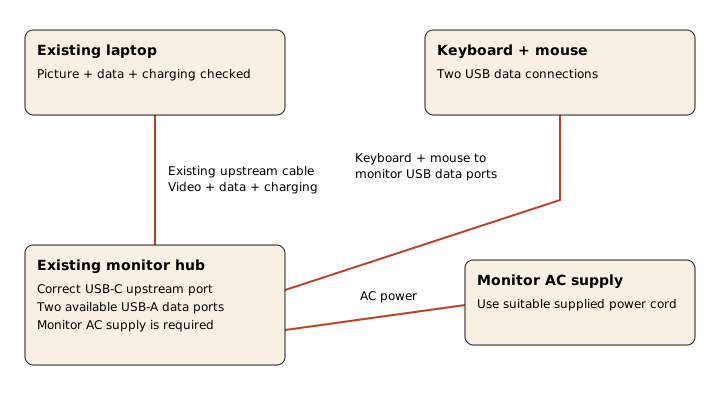
The diagram below belongs to our independent free sample. It illustrates an existing laptop connected to a monitor's upstream port, with a keyboard and mouse on two downstream data ports and separate monitor AC power. The sample assumes those exact functions have been checked; it does not establish that your equipment has them.
Trace one peripheral all the way back to the laptop. Then trace the display path and power supply. If a line stops at a port whose function is unknown, mark the connection unresolved. That is useful information: it tells you what to verify before spending money.
Check the host before blaming the adapter
For a Mac, Apple says the number of external displays depends on the exact model and the displays' resolution and refresh rate. Check that model's specifications before buying hardware to support an arrangement it may not permit. For another computer, use its manufacturer documentation at the same level of detail.
Keep a note of the operating system, display mode, port and cable you intend to use. If a candidate dock's manual includes a compatibility table or software requirement, record the applicable entry. Do not generalize a successful setup on a different computer to your own.
Verify one change at a time
Start with the simplest documented display connection you can make using what you own. Check whether the display appears and whether the intended mode is available. Add peripherals one at a time. Check laptop charging separately during representative use rather than declaring the entire map verified when an image first appears.
If a result differs from the plan, return to the relevant device instructions. Keep the successful configuration recorded while you investigate. Only then compare a different cable, adapter, hub or dock. The completed sample provides the written connection sequence alongside the diagram, and the paid online tools let you record your own devices, evidence and unresolved checks.
See a complete worked example
Read a finished keep/skip decision, connection map and budget. Then judge whether the $19 digital Desk kit and online planning tools would help. Equipment is separate.